Appendix A — File Systems
After this lesson, you should be able to:
- Describe a file system, directory, and working directory
- Write paths to files or directories
This chapter is a review of how files on a computer work. You’ll need to understand this in order to read a dataset from a file, and it’s also important for finding your saved notebooks and modules later.
A.1 File Systems
Your computer’s file system consists of files (chunks of data) and directories (or “folders”) that organize those files. For instance, the file system on a computer shared by Ada and Charles, two pioneers of computing, might look like this:
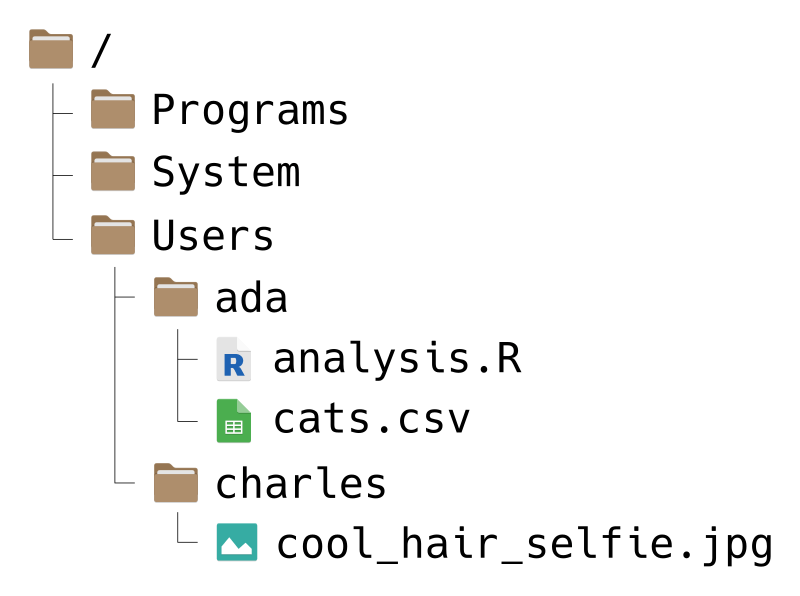
File systems have a tree-like structure, with a top-level directory called the root directory. On Ada and Charles’ computer, the root is called /, which is also what it’s called on all macOS and Linux computers. On Windows, the root is usually called C:/, but sometimes other letters, like D:/, are also used depending on the computer’s hardware.
A path is a list of directories that leads to a specific file or directory on a file system (imagine giving directons to someone as they walk through the file system). Use forward slashes / to separate the directories in a path. The root directory includes a forward slash as part of its name, and doesn’t need an extra one.
For example, suppose Ada wants to write a path to the file cats.csv. She can write the path like this:
/Users/ada/cats.csvYou can read this path from left-to-right as, “Starting from the root directory, go to the Users directory, then from there go to the ada directory, and from there go to the file cats.csv.” Alternatively, you can read the path from right-to-left as, “The file cats.csv inside of the ada directory, which is inside of the Users directory, which is in the root directory.”
As another example, suppose Charles wants a path to the Programs directory. He can write:
/Programs/The / at the end of this path is reminder that Programs is a directory, not a file. Charles could also write the path like this:
/ProgramsThis is still correct, but it’s not as obvious that Programs is a directory. In other words, when a path leads to a directory, including a trailing slash is optional, but makes the meaning of the path clearer. Paths that lead to files never have a trailing slash.
On Windows, the components of a path are conventionally separated with backslashes \ instead of forward slashes /.
Regardless of the operating system, R uses forward slashes / to separate components of paths. In other words, you should use paths separated by with forward slashes in your R code, even on Windows. This is especially convenient when you want to share code with other people, because they might use a different operating system than you.
A.2 Absolute & Relative Paths
A path that starts from the root directory, like all of the ones we’ve seen so far, is called an absolute path. The path is “absolute” because it unambiguously describes where a file or directory is located. The downside is that absolute paths usually don’t work well if you share your code.
For example, suppose Ada uses the path /Programs/ada/cats.csv to load the cats.csv file in her code. If she shares her code with another pioneer of computing, say Gladys, who also has a copy of cats.csv, it might not work. Even though Gladys has the file, she might not have it in a directory called ada, and might not even have a directory called ada on her computer. Because Ada used an absolute path, her code works on her own computer, but isn’t portable to others.
On the other hand, a relative path is one that doesn’t start from the root directory. The path is “relative” to an unspecified starting point, which usually depends on the context.
For instance, suppose Ada’s code is saved in the file analysis.R, which is in the same directory as cats.csv on her computer. Then instead of an absolute path, she can use a relative path in her code:
cats.csvThe context is the location of analysis.R, the file that contains the code. In other words, the starting point on Ada’s computer is the ada directory. On other computers, the starting point will be different, depending on where the code is stored.
Now suppose Ada sends her corrected code in analysis.R to Gladys, and tells Gladys to put it in the same directory as cats.csv. Since the path cats.csv is relative, the code will still work on Gladys’ computer, as long as the two files are in the same directory. The name of that directory and its location in the file system don’t matter, and don’t have to be the same as on Ada’s computer. Gladys can put the files in a directory /Users/gladys/from_ada/ and the path (and code) will still work.
Relative paths can include directories. For example, suppose that Charles wants to write a relative path from the Users directory to a cool selfie he took. Then he can write:
charles/cool_hair_selfie.jpgYou can read this path as, “Starting from wherever you are, go to the charles directory, and from there go to the cool_hair_selfie.jpg file.” In other words, the relative path depends on the context of the code or program that uses it.
When use you paths in code, they should almost always be relative paths. This ensures that the code is portable to other computers, which is an important aspect of reproducibility. Another benefit is that relative paths tend to be shorter, making your code easier to read (and write).
When you write paths, there are three shortcuts you can use. These are most useful in relative paths, but also work in absolute paths:
.means the current directory...means the directory above the current directory.~means the home directory. Each user has their own home directory, whose location depends on the operating system and their username. Home directories are typicallyC:/Users/on Windows,/Users/on macOS, and/home/on Linux.
As an example, suppose Ada wants to write a (relative) path from the ada directory to Charles’ cool selfie. Using these shorcuts, she can write:
../charles/cool_hair_selfie.jpgRead this as, “Starting from wherever you are, go up one directory, then go to the charles directory, and then go to the cool_hair_selfie.jpg file.” Since /Users/ada is Ada’s home directory, she could also write the path as:
~/../charles/cool_hair_selfie.jpgThis path has the same effect, but the meaning is slightly different. You can read it as “Starting from your home directory, go up one directory, then go to the charles directory, and then go to the cool_hair_selfie.jpg file.”
The .. and ~ shortcut are frequently used and worth remembering. The . shortcut is included here in case you see it in someone else’s code. Since it means the current directory, a path like ./cats.csv is identical to cats.csv, and the latter is preferable for being simpler. There are a few specific situations where . is necessary, but they fall outside the scope of this text.